

Yes, AI can identify foods in a photo and estimate their carbohydrate and protein content. An instant food scanner for carbs and protein can also break down a meal into ingredients, though portion size and mixed dishes can make the estimates less precise.
Photo logging can make tracking faster, but results depend on what the image shows. Visible ingredients are easier to assess than hidden oils, sauces, or foods combined in one dish.
This article explains how photo scanning works, how it estimates carbs and protein, and how to review meal totals. It also compares barcode scanning and food logs to show how these tools can fit into everyday tracking.
Key Takeaways
- Photo scanning can identify visible foods and ingredients, but portion size and mixed dishes can affect the nutrition estimate.
- Review estimated carbohydrate and protein values alongside serving size and ingredient details when tracking a meal.
- Per-item breakdowns help show how individual foods contribute to the meal’s combined totals.
- Barcode scanning can help log packaged foods, while a food history can make previous entries easier to review.
- Learn how photo scans, barcode entries, and saved logs fit into a consistent food-tracking routine.
Is there an AI that tells you what food is in a photo?
Yes. AI food scanners can identify visible foods in a photo and estimate their nutrition, including carbohydrates and protein. Results depend on recognizing ingredients and estimating portions, not simply matching a picture.
Photo-Based Food and Ingredient Recognition
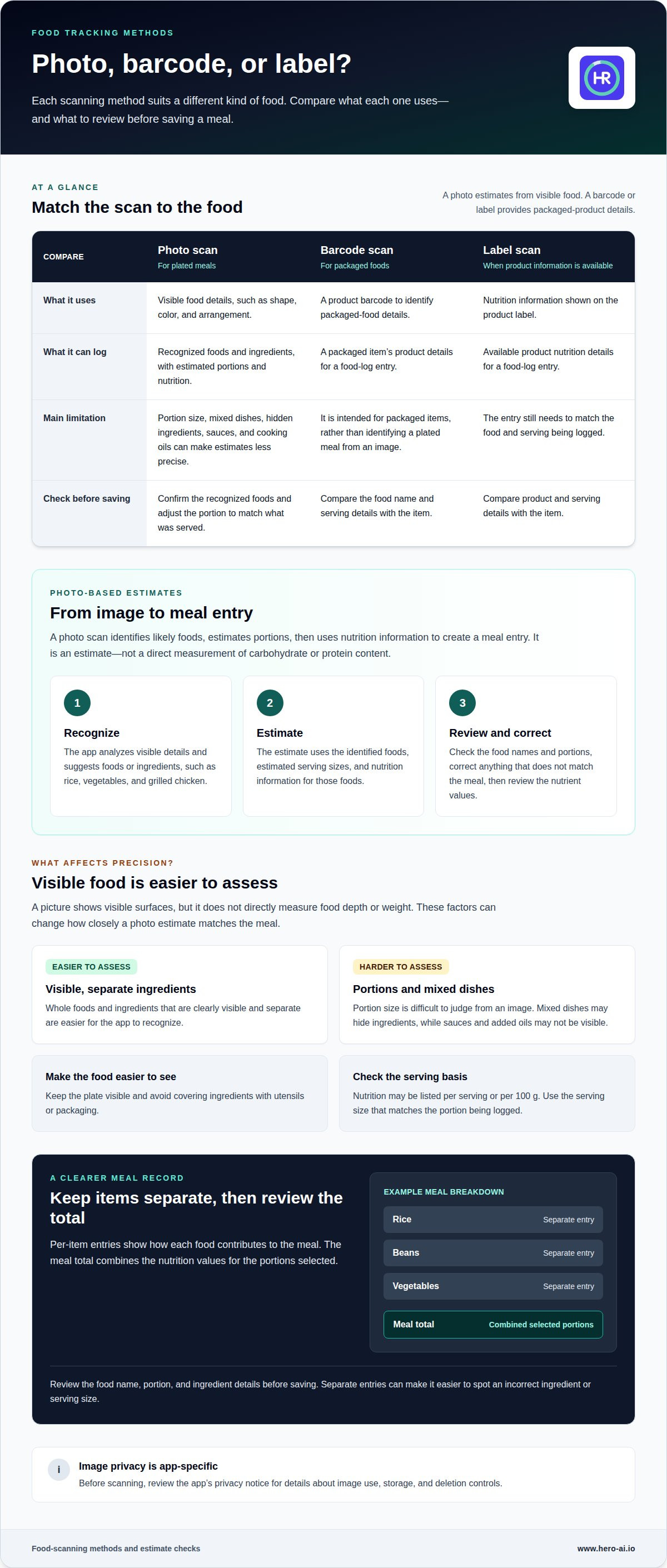
Food-tracking apps with photo recognition analyze visual details such as shape, color, and arrangement. An app may identify a plate as rice, vegetables, and grilled chicken, then use those foods to create a log entry. Recognition works best when ingredients are visible and separate. Because a photo cannot reveal every ingredient in a recipe, review the suggested foods and correct anything that doesn’t match your meal.
Barcode and nutrition-label scans can provide information about packaged foods. These methods differ from image recognition: a barcode or label identifies product details, while a photo prompts an estimate based on visible food.
Carbohydrate Estimates From Food Photos
A photo-based carbohydrate estimate starts with the foods the system identifies. The app then uses estimated portions and nutrition information for those foods to calculate a meal entry. For example, if a bowl is identified as oatmeal with fruit, the app estimates carbohydrates from the ingredients and serving size. This is an estimate, not a direct measurement of the food’s carbohydrate content.
An instant food scanner for carbs and protein can organize these estimates in a food log. Check that the entry reflects the visible ingredients and amount served. A larger portion of rice changes the meal estimate, even if the food itself was identified correctly.
Factors Affecting Photo Accuracy
Portion size is one of the hardest parts of estimating nutrition from a photo. A camera captures visible surfaces, but it doesn’t directly measure depth or weight. Mixed dishes, sauces, and cooking oils are also harder to assess than visible whole foods. For example, a browned casserole may hide several ingredients, while added oil may not be visible at all.
Clear framing can make food easier to identify. Keep the plate visible and avoid covering ingredients with utensils or packaging. Photo privacy depends on how an app handles uploaded images. Before scanning, review its privacy notice for details about image use, storage, and deletion controls.
Scanning by Photo, Barcode, or Label
To scan a meal, open the food-tracking app’s photo feature, take or upload an image, and review the recognized foods and portions. Then correct the entry before saving its carbohydrate and protein estimates. Using the photo-taking or upload feature requires signing up for a newsletter. This step applies to the photo feature described here.
Phone apps can combine photo recognition with barcode or label scanning, but each method suits different foods. Use a photo for a plated meal, a barcode for a packaged item, or a label scan when product information is available. Compare the food name and serving details with the item you’re logging. This helps ensure the saved entry matches your meal.
Carbohydrate and protein tracking
Food tracking can record carbohydrates and protein alongside calories, fat, and fiber. Reviewing these values together shows how a meal’s components contribute to its nutrition summary. For example, a log can list a grain, vegetables, and a protein food separately, making each item’s contribution easier to review than a single combined total.
For diabetes or low-carb meal tracking, choose an app that displays carbohydrate amounts clearly and lets you record foods consistently. Look for editable food entries, serving-size adjustments, and a log you can review over time. No single app suits every person or tracking routine. WebMD advises speaking with a doctor or another qualified healthcare provider before starting or changing a weight-management or physical-activity plan.
Nutrition values may appear per serving or per 100 g. Those measures describe different amounts of food, so use the serving size that matches the item being logged. A product entry showing carbohydrates per 100 g needs a portion adjustment before representing a smaller or larger serving. The same principle applies to protein, calories, fat, and fiber.
Use a consistent sequence when adding foods: select the food, set the portion, then review its nutrient values before saving. Separate entries for bread, eggs, and vegetables make each food’s carbohydrate and protein contribution easier to see. For a packaged drink, use its serving information rather than automatically treating the full container as one serving.
- Carbohydrates: Review the amount for the selected portion, not only the per-100-g figure.
- Protein: Compare contributions from separate ingredients, such as eggs and beans.
- Calories and fat: Include these values when they support the tracking record.
- Fiber: Record it alongside carbohydrates when the food entry provides it.
Estimated nutrition values depend on the selected food and portion. A cooked dish may differ from a generic entry if its ingredients or preparation are different. Review sauces, spreads, and drinks, which are easy to overlook. Correcting the food name or serving amount keeps the saved record aligned with what you consumed.
For a more consistent routine, use the same serving basis when comparing similar foods. Per-100-g values help compare products by weight, while serving-based values match the portion recorded in a meal. Continue exploring nutrition-tracking information as you decide which details belong in your log.
Per-item nutrition breakdowns and meal totals
A useful meal record shows each food separately before combining the nutrition values. For a bowl with rice, beans, vegetables, and dressing, separate entries show which ingredients contribute carbohydrates, protein, fat, and calories. The meal total adds the values for the portions selected. This makes it easier to spot an incorrect ingredient or serving size before saving.
Food databases provide nutrition values for specific foods and serving descriptions. Entries may include protein, carbohydrates, fat, fiber, calories, and other nutrients. Available details depend on the selected food and its database record. A generic entry for cooked rice may not match a packaged rice product or a recipe with added ingredients. Choose the closest description and serving basis to keep the meal calculation relevant.
ESHA nutrient database is one named database readers may encounter when reviewing nutrition-data sources. Check the entry details shown in an app, including the food description, serving unit, and listed nutrients. A database name alone doesn’t confirm that an entry matches your food. For example, plain chicken differs from chicken prepared with a coating or sauce.
Do food scanner apps support packaged-food labels and restaurant foods? Some include entries for packaged products based on label information, as well as restaurant foods. Coverage depends on the app’s database and the item being logged. If an entry isn’t available, use the label values shown on the product or select a comparable food, then adjust the serving where the app allows.
Nutrition dashboards and charts organize saved entries by meal or day. A carbohydrate chart, for example, can show how logged meals contribute to the recorded total. Treat it as a summary of saved data, not a measurement of the food itself. An inaccurate portion or unsuitable database match also affects totals and charts.
- Review the food name: Match the entry to the item or recipe.
- Check the serving unit: Compare grams, servings, or other displayed measures.
- Inspect available nutrients: Confirm that the entry shows the values relevant to your tracking.
- Review the meal total: Look for missing ingredients or duplicate entries.
For a mixed meal, add each main ingredient as a separate entry when practical, then compare the combined values with the meal summary. If a dashboard shows a sudden change, inspect that meal’s entries first. Switching from a generic food to a packaged product can alter the recorded nutrition, even when the meal looks similar.
Barcode scanning for packaged foods
A barcode scan can match a packaged food to a database entry that may show nutrition values, serving information, and product details. This can make logging a sealed snack or drink more direct than describing it manually. The scanner reads the code; it doesn’t measure the package’s weight or confirm how much you consumed.
To look up a barcode, open the scanner in a food-tracking app and position the code inside its frame. Select the matching product, then review its name and serving unit before logging it. A cereal box, for example, may show values per serving rather than for the full box. Record the amount you ate, not the package’s full contents unless you finished it.
Product entries can vary by brand, flavor, package size, or formulation. Plain and flavored versions of the same food may have different carbohydrate or protein values. Check the product name and label details shown in the app. If the scan returns a different item, don’t save it as a match. Search for the product by name or enter the label information manually when available.
Barcode lookup has limits. A code identifies a product, but it doesn’t tell the app whether you ate one serving or several, or how much remains in an opened package. If the label lists values per serving, use the serving description and amount consumed to create a useful log entry. If you weigh food on a kitchen scale, enter the measured weight only when the app supports that unit and calculation.
Free barcode scanning depends on each app’s access model. Some apps allow scans without payment, while others reserve scanning or related features for a paid plan. Check the app’s feature screen before relying on barcode lookup as part of your routine. Consider whether you can save a scanned item, adjust serving amounts, and edit an entry when product details differ.
- Scan: Center the packaged food’s barcode in the app’s scanner.
- Match: Confirm the product name, flavor, and package details.
- Set the amount: Select the serving or weight that reflects what you ate.
- Review: Check the displayed carbohydrates and protein before saving.
Scanning a product at a grocery counter can help identify its database entry before purchase. The package label is still useful for checking serving information and nutrition values. Unpackaged foods, restaurant meals, and homemade recipes don’t have barcodes, so they need another entry method, such as searching a food database or adding ingredients individually.
Food-tracking apps with barcode scanners can quickly look up packaged foods and display carbohydrate and protein values from a matching database entry. The scanner reads the package code; it doesn’t measure how much food you consumed.
Food logging and scan history
A food log turns separate scans into a record of meals and snacks. Entries can include a food name, portion, time, and nutrition values. For example, a breakfast entry might group oats, milk, and fruit. Scan history can make saved entries easier to find later. The log is useful only when its entries reflect the foods and portions you actually consumed.
Review an entry after scanning and before saving it. Confirm the food description, adjust the portion if needed, and assign it to the correct meal. If a photo identifies a sandwich but misses its spread, add the spread separately. For packaged yogurt, select the matching product and record the amount eaten. These edits help keep a daily record consistent.
Saved entries can reduce repeated work. If breakfast often includes the same ingredients, find an earlier meal in the app’s history and update it for the current portion. Don’t reuse it without checking for changes: different milk, toppings, or serving amounts can alter the nutrition values. For a new dish, add its ingredients or use a recipe entry if the app supports one.
Recipes help organize meals made with multiple ingredients. Add the ingredients, set the recipe’s serving amount, and log the portion you eat. For example, a lentil soup recipe can include lentils, vegetables, broth, and other ingredients. Update the saved ingredient list if the recipe changes. Reusing an unchanged entry for a modified dish can make its nutrition totals less relevant.
Scan history can help you find gaps in a log. Review the day’s entries for meals or drinks you may have missed. An unsaved scan won’t appear in the record, while a duplicate entry may count the same food twice. When reviewing past entries, check the date, meal category, and saved status. If the app allows edits, correct the record rather than creating a second version.
- Review each scan: Match the food name and portion before saving.
- Use history carefully: Update earlier entries when ingredients or amounts change.
- Organize recipes: Keep ingredient lists aligned with the prepared meal.
- Check the daily record: Look for missing drinks, duplicate foods, or misplaced meals.
Choose a logging routine that suits how you eat. Photo scans can capture meals, while manual entry can record foods that need more detail. Use saved history for repeat meals, then adjust ingredients and portions. Start organizing your food log with a consistent entry routine.
Hero AI
Hero AI is a next step for readers exploring food scanning and nutrition tracking. The available offering is a 1 year subscription. Consider it if you want to continue your interest in recording meals and reviewing food information over time. Photo-based estimates can support a food log, while portion choices and mixed ingredients affect the details recorded. A subscription does not replace reviewing entries against the food and serving you consumed. If you have questions about the subscription or how it fits your needs, contact Hero AI.
Make food tracking part of your routine
Choose a tracking approach that suits the way you record meals. An instant food scanner for carbs and protein can support a routine, but its value depends on keeping useful entries consistent. Decide what matters most, such as portion details, meal totals, or a record you can review later, and use that preference to guide your next step.
Keep your process practical. Record foods in a way you can maintain, and make room for manual adjustments when a meal needs more detail. Over time, your log can help you review your own entries and identify which tracking approach works for your needs.
Hero AI offers a 1 year subscription. For information about food scanning and the subscription, contact Hero AI about food scanning. Start with the tracking details that matter to you, then build a routine at your own pace.
Frequently Asked Questions
Can AI estimate portion size and serving weight from pictures?
AI can estimate a portion from visible food, but a photo can’t measure serving weight like a food scale. Perspective, plate size, and food depth all affect the estimate. A flat image of sliced fruit reveals less about quantity than a bowl viewed from above and from the side. Treat the result as a starting estimate, then adjust the portion if the app allows it.
Can I analyze multiple food items in one image?
Some photo-scanning tools can identify several visible foods in one image. A plate with separate rice, greens, and fish is easier to parse than a layered casserole with overlapping ingredients. Review each suggested item before saving the scan. If a dressing, garnish, or side dish is missing, add it separately so the meal record reflects what was served.
What types of food can the AI recognize?
Photo recognition uses visible food characteristics, so distinct items such as an apple, bread, or cooked vegetables are easier to identify than hidden ingredients. It may also suggest components in a mixed meal, but sauces, oils, fillings, and cooking methods are difficult to see. When product details are available, packaged foods can be logged with a barcode or nutrition-label scan.
How accurate are food scanner apps for calories, carbohydrates, and protein?
Accuracy depends on identifying the food correctly, estimating the serving size, and using relevant nutrition data. A clear photo of separate foods provides different clues than an image of blended soup or a sauced dish. An error in one ingredient or portion affects calories, carbohydrates, and protein together. Review the saved food description and serving amount, especially when using the numbers for a health-related decision.
How much do food scanner apps and nutrition-tracking subscriptions cost?
Costs depend on the app’s subscription model, included features, and billing period. Some apps offer basic tracking without a paid plan, while other features require a subscription. Compare what each plan includes, how renewal works, and whether the cancellation terms suit you. Prices vary by product, so there’s no single cost for every food scanner or nutrition-tracking subscription.
Can a phone camera accurately estimate carbs and protein in homemade meals?
A phone camera can help estimate nutrition for homemade meals, but it can’t reveal every ingredient or exact quantity. A photo of pasta may not show how much oil, cheese, or sauce went into it. For a more detailed log, separate the recipe into ingredients and record the amount used. The camera can help identify visible foods, while recipe details add context.
What are the privacy risks of food photo and barcode scanner apps?
Privacy considerations include how an app handles uploaded meal images, account details, scan history, and device permissions. Barcode scans can also reveal patterns in the packaged foods someone records. Review the app’s privacy information for image storage, deletion options, data sharing, and account controls. Avoid including faces, documents, or other personal details in food photos unless necessary.
Which food scanning app is best for diabetes or low-carb meal tracking?
No single app is best for everyone. For diabetes or low-carb tracking, choose one that displays carbohydrate amounts clearly, lets you edit food entries and adjust serving sizes, and allows you to review your log over time.


