

How can you log a takeout meal without entering every ingredient? A takeout meal nutrition scanner can use a photo to identify visible foods and suggest calories and macros. Mixed ingredients, hidden sauces, and unknown portion sizes can make the result less certain, and a menu description may not include every detail that affects the estimate.
You don’t have to treat every scan as exact to track consistently. Photo-based logging gives you a practical starting point; reviewing the suggested foods and adding details you know can make the entry more useful. HERO AI supports meal photo recognition and provides access to a database of more than 3 million verified foods.
This guide explains how photo-based meal logging works and how to record takeout with useful calorie and macro information. You’ll also learn when to review an estimate, adjust an entry, or choose another method, such as barcode scanning for packaged foods. The aim is a repeatable tracking routine, not the assumption that a photo can identify every ingredient or provide an exact result.
Key Takeaways
- A takeout meal nutrition scanner can suggest a food entry, but its estimate is different from nutrition information published for a specific meal.
- Photo logging works best when you capture the meal, review the suggested entry, and record relevant details instead of automatically accepting the first match.
- Choose a logging method based on what you have: a meal photo, nutrition information for a matching restaurant item, or a barcode for a packaged product.
- For a more consistent record, note modifications and log visible sides, drinks, and sauces separately when that better reflects what you ate.
- HERO AI combines photo-based meal logging and barcode scanning with food data as part of a broader nutrition-tracking routine.
What a takeout meal nutrition scanner can, and cannot, tell you
A takeout meal nutrition scanner helps record food and estimate or retrieve nutrition information. With photo-based logging, it identifies visual features of a meal and suggests a food entry. Other methods use available nutrition data to find a matching item. In either case, the result depends on what the tool can identify and whether suitable data is available.
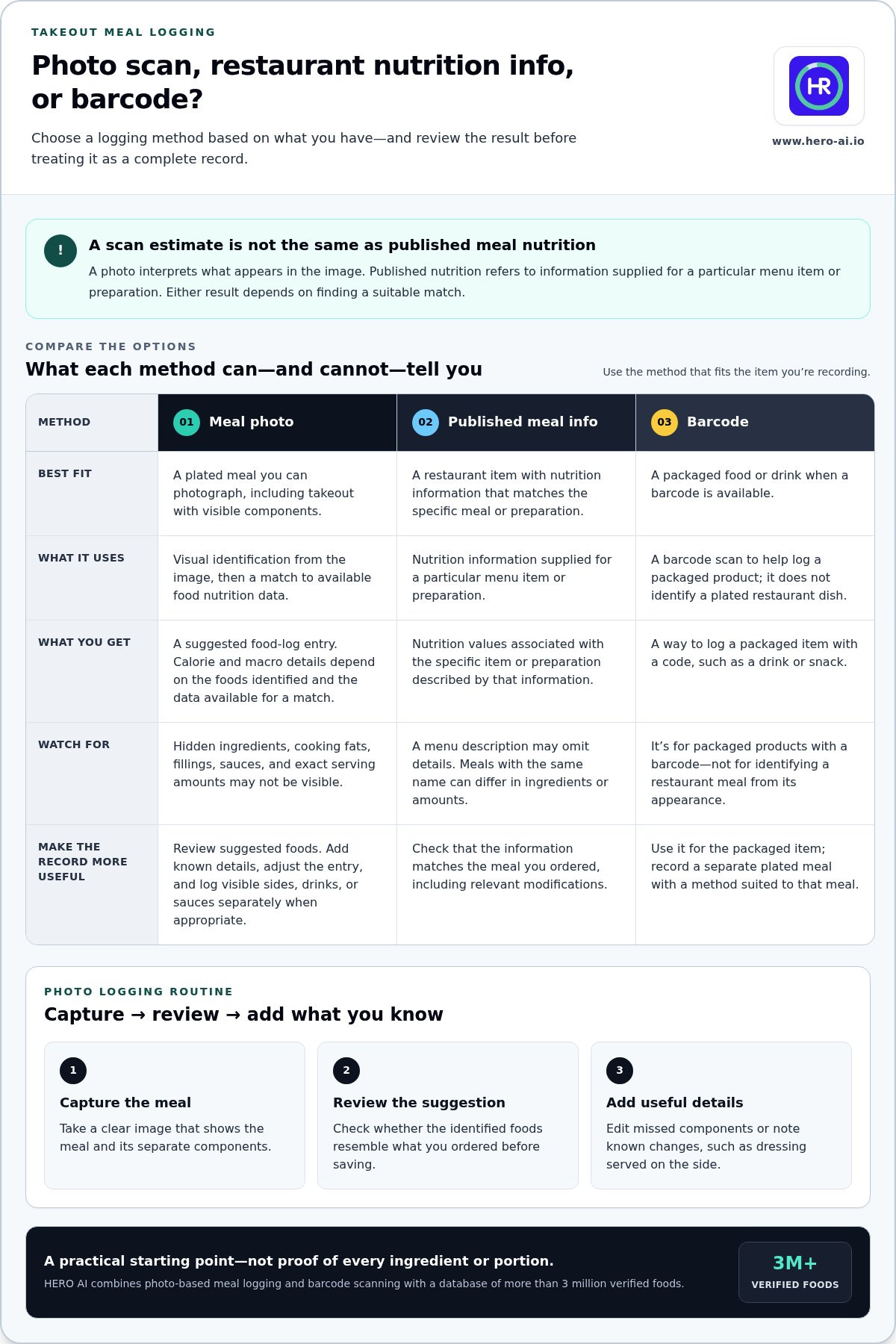
A scan is not the same as nutrition information published for a specific prepared meal. Published values refer to information supplied for a particular menu item or preparation. A photo-based estimate interprets what appears in an image. It can help you create a log entry, but it doesn’t confirm the recipe, ingredients, or amount served.
A nutrition estimate describes a likely match; verified nutrition information describes a specific prepared meal. Keep that distinction in mind when using a takeout meal nutrition scanner. Treat the result as a useful record, not proof that every component has been identified or measured.
What information can a meal scan provide?
Meal recognition can suggest which foods appear in a photo and provide a starting point for a food-log entry. Calorie and macro details, including protein, carbohydrates, and fat, depend on the foods identified and the nutrition data available for those foods. Recognizing an item and matching it to nutrition data are related, but separate, steps.
A photo may not show hidden ingredients, cooking fats, fillings, or the meal’s exact serving amount. Review the suggested entry and adjust it when you have useful details about the dish. For example, if you know a dressing was served on the side, record that instead of assuming it was mixed into the whole meal.
Why takeout meals are difficult to estimate
Takeout often combines foods that are hard to separate visually. A mixed bowl may contain rice, vegetables, protein, and dressing beneath toppings. A sandwich may include spreads or fillings that aren’t visible. A meal with separate sides may need more than one entry to represent the full order.
Sauces, cooking methods, toppings, and serving sizes can also vary. Two meals with the same name may differ in ingredients or amounts. A photo can show what is visible, but not how the food was prepared or how much is beneath the surface.
- Sauces and dressings: A small visible portion may not show how much was mixed through the dish.
- Preparation: Grilled, fried, or sautéed foods can look similar in a photo while differing in added ingredients.
- Portions and sides: Serving amounts and included extras can change the total you record.
Use visible details to refine the entry, and record separate components individually when that better represents what you ate. If the estimate doesn’t fit the meal, select a closer food entry or use another source of nutrition information.
How photo-based takeout nutrition scanning works
A takeout meal nutrition scanner turns a meal photo into a proposed food-log entry through two related steps: visual identification and nutrition-data matching. First, the tool interprets the visible foods. Then, it uses available food information to associate those foods with nutrition details. A suggested match is a starting point for review, not confirmation of the recipe or portion.
From meal photo to food-log entry
Take a clear image that shows the meal and its separate components. Then review the suggested food entry before saving it. Check whether the identified items resemble what you ordered, and edit or add details if the entry misses a visible component or customization. A well-framed image can make the meal easier to represent, but it cannot reveal every ingredient or preparation detail.
The recognition step identifies likely foods. The matching step connects those foods to available nutrition data. If the photo is interpreted as a grain bowl, for example, the system still needs suitable entries for the grain, protein, vegetables, and other components to create a useful log. Details you know, such as a removed topping or added sauce, can help make the saved record more representative.
For more detail on how image recognition supports food logging, see this AI calorie counter guide.
Where food databases and barcodes fit
A food database supplies nutrition information when a suitable entry is available. HERO AI combines AI-powered meal photo logging with a database of more than 3 million verified foods. That database can support food matching, but it doesn’t mean every prepared takeout dish has an exact entry. A custom recipe or a meal with unlisted modifications may still need a reviewed estimate or a different logging method.
A scan result depends on the meal details identified and the nutrition data available for a suitable match. Consider both when deciding whether a proposed entry is useful. Broader context on nutrition data and tracking systems appears in this macro tracking app analysis.
Barcode scanning serves a different purpose. It can help log packaged foods when a barcode is available, but it doesn’t identify a plated restaurant dish. For takeout, a meal photo and food-data match are more relevant; use a barcode for a packaged drink, snack, or other item with a code.
A food log can organize meal details for later review, such as recurring ingredients or meal types. Use it as a record of food choices, not as a substitute for individualized nutrition advice.
To apply this workflow within a broader nutrition routine, explore HERO AI meal photo logging.
Photo scan, restaurant lookup, or barcode: which takeout logging method fits?
The right logging method depends on what information is available for the meal. A photo can help represent a served dish, a restaurant nutrition listing can provide values for a matching menu item, and a barcode can identify a packaged product. Each method uses different inputs, so choose the one that fits the food you’re recording.
| Method | Useful when | Information to review |
|---|---|---|
| Photo logging | The meal is served and no package or label is available. | Suggested food components, visible sides, and customizations. |
| Restaurant nutrition lookup | A listing represents the exact dish and serving details. | Item name, portion, preparation, and any changes to the order. |
| Barcode scanning | A packaged takeout item has a scannable code. | Whether the scanned product matches the item and its package details. |
Use a photo for an unlabelled served meal, restaurant nutrition information for a matching menu item, and a barcode for a packaged product with a code. No method automatically accounts for recipe changes or unlisted customizations. Review the details before saving the entry.
When a meal photo is the practical starting point
Photo logging is useful when your meal arrives ready to eat and its package or label isn’t available. The image can help create a starting entry from visible foods. A mixed meal may produce several suggested components, so check whether they reflect what you ordered. Add or adjust details where needed. A photo can’t confirm hidden ingredients or exact serving weights.
For example, if your meal includes a main dish and a separate side, check that both appear in the proposed log. If a topping was removed or a sauce was added, record that change rather than assuming the image captures the full order accurately.
When a database entry or barcode may be more useful
Restaurant nutrition information can be useful when the listing matches the exact dish and portion you received. A similar item name isn’t enough if the serving size or preparation differs. Customizations, substitutions, and recipe changes can also make the published entry a less suitable match.
Use barcode scanning for packaged takeout items with a scannable code, such as a bottled drink or packaged snack. The code helps identify that product; it doesn’t identify the ingredients in a plated dish. If a meal combines packaged and prepared foods, use the method that fits each component, then review the complete log for missing items or modifications.
How to scan and log a takeout meal more consistently
A repeatable routine can make takeout entries easier to compare over time. Use the same sequence for each meal: photograph it, review the suggested foods, record modifications, and save the entry. The aim is a consistent record of what you ate, not a claim that a photo provides exact nutrition values.
Prepare a useful meal photo and record
Capture the meal before eating or rearranging it. Frame the main dish and visible components clearly. Include separate sides or drinks when practical, or plan to record them as separate entries. A clear image can support a food-log suggestion, but it can’t guarantee that every item will be recognized.
After capturing the image, follow this process:
- Review the suggested entry. Compare the listed foods with the meal you ordered and received. Check for missing or incorrectly identified components.
- Record modifications. Note additions, removals, substitutions, or sauces that differ from the standard preparation. Use the app’s available controls, and don’t add details you can’t reasonably identify.
- Account for separate items. Log visible sides, drinks, and sauces separately when that better represents what you ate. Include only the items and amounts you consumed.
- Save the entry. Keep descriptions consistent. For example, describe a half portion or removed topping the same way each time you record one.
Consistent descriptions make your records more useful when reviewing meal patterns. They don’t make the nutrition estimate more precise by themselves.
Review the result without overstating precision
Before saving, compare the suggested foods with both your order and the meal you actually ate. An order may include a sauce you didn’t use, or a side you only partly consumed. Record the meal as eaten rather than logging every item that arrived.
If a matching listed entry is available, use it when its dish and serving details reflect your meal. If no suitable entry exists, keep the scan as an estimate and describe the uncertainty where the app’s controls allow. Don’t select an unrelated food just to produce a more complete-looking result.
Use the same review habits for each takeout entry. Repeated logging can support a more consistent record, but it doesn’t verify the ingredients, preparation, or nutrition values of a specific meal. Tracking is informational. It doesn’t set an appropriate calorie target or predict a weight outcome.
For a photo-based approach to recording takeout, explore HERO AI meal logging as part of your nutrition routine.
Using HERO AI to track takeout meals within a nutrition routine
A takeout meal nutrition scanner is most useful as part of a broader record, not as a stand-alone measure of a meal. HERO AI brings photo-based meal logging, barcode scanning, and food data into a nutrition and fitness tracking platform. Use photo logging to start a takeout entry, review what was logged, and keep the record alongside other meals.
What HERO AI can contribute to takeout tracking
HERO AI supports meal photo recognition and provides a database of more than 3 million verified foods. The database can help supply nutrition information when a suitable entry is available. It doesn’t mean every takeout dish or customized recipe has an exact match, so review suggested entries and treat uncertain details as estimates.
Barcode scanning complements photo logging for packaged items. Use it for a packaged food or drink with a barcode, while a photo is the relevant starting point for a served meal. Keeping those methods distinct can make your record clearer: log the prepared dish as a meal, and use a barcode for a separate packaged item when appropriate.
Once an entry is saved, calorie and macro information can contribute to your ongoing tracking record. Review the logged details in context. One meal entry doesn’t establish the nutrition profile of every similar meal, and tracking alone doesn’t promise a particular health result.
How to continue beyond one meal
Repeated records can help you review patterns in your own food log. You might compare how often you record takeout, which meal components appear regularly, or whether entries often need notes about sauces or substitutions. Those observations describe the record you have created; they aren’t a diagnosis or a prescribed eating plan.
Keep your entries consistent enough to make comparisons useful. Record meals as eaten, and distinguish a scan-based estimate from a listed value when that difference matters. If a meal has details you can’t identify, avoid filling the gap with unsupported ingredient or portion assumptions.
HERO AI also includes social-media recipe imports as a separate feature. That tool can support logging recipes shared online, while photo recognition and barcode scanning serve different meal-recording situations. For more context on maintaining records across meals, see this AI food journal guide.
To include photo logging and food-data tools in your nutrition routine, Explore HERO AI.
Make your next takeout entry a useful starting point
Build a routine you can maintain. For your next takeout meal, choose the logging method that fits the available information, record what you actually ate, and review the entry before saving it. A takeout meal nutrition scanner can support that process, but the value comes from using the record thoughtfully, not treating every estimate as exact.
Over time, consistent notes can help you review your meal log and decide which details are useful to capture. Keep the process practical: note relevant modifications, make uncertainty clear where possible, and use the information as a record rather than a judgment about a single meal.
HERO AI’s one-year subscription brings nutrition and fitness tracking tools together, including AI-powered photo meal logging, barcode scanning, and access to food data. Explore HERO AI’s nutrition tracking tools and choose a takeout logging routine that works for you. Each carefully recorded meal can make your nutrition record more useful.
Frequently Asked Questions
Can a takeout meal nutrition scanner give exact calorie counts?
No, a photo-based scanner can’t confirm an exact calorie count for a prepared meal. Ingredients, preparation, and serving amounts may not be fully visible or identifiable. Treat the result as an estimate, especially for dishes with sauces or mixed components. If you have nutrition information for the exact menu item and serving, compare it with the scan and use the information that best represents the meal you received.
How do I scan a takeout meal with a nutrition app?
Open the app’s meal-photo logging feature and capture the meal before eating or rearranging it. Review the suggested foods, then add or correct details using the app’s available controls. Record relevant changes, such as a removed topping or an extra side. If the app lets you save notes, use a consistent description for portions and customizations. Check the saved entry against what you actually ate.
Can a food scanner identify ingredients hidden in a takeout meal?
No, a photo can’t reliably show ingredients concealed beneath other foods or mixed into a sauce. A filling, dressing, or cooking ingredient may not be visible in the image. Use meal details you already know to refine the log, but avoid guessing when information is unavailable. If an ingredient matters to your record, keep the uncertainty clear rather than treating a visual match as confirmation.
Is barcode scanning useful for restaurant takeout?
Barcode scanning is useful for packaged takeout items that have a scannable code, such as a packaged drink or snack. It isn’t a method for identifying a plated restaurant meal. If an order includes both prepared food and packaged items, record each part using the method that fits it. A barcode entry also may not reflect changes made to a product or meal after packaging.
Can HERO AI track macros for takeout meals?
Yes. HERO AI provides nutrition and fitness tracking tools, including AI-powered meal photo logging and barcode scanning. A takeout entry can contribute calorie and macro information when the identified food has a suitable data match. Review the suggested entry and its details before relying on it. The result is a tracking record, not a verified nutrition analysis of the specific meal you received.
What should I do if my takeout meal does not match a scanner result?
Don’t save a suggested entry unchanged if it clearly differs from your meal. Look for a closer food entry, separate the main dish and sides into distinct records, or use matching nutrition information if you have it. Add known modifications through the app’s available controls. If the meal remains uncertain, keep it as an estimate and make a note rather than assigning unsupported ingredients or portions.
Does a takeout nutrition scanner work for every restaurant?
No single takeout meal nutrition scanner can be assumed to have a suitable match for every restaurant dish. A meal may be custom-made, described differently, or absent from available food data. Photo logging can still provide a starting record, but review the suggested foods and adjust what you can. If the entry doesn’t represent the dish, use another suitable source or keep the log clearly marked as an estimate.


